Blog · · 7 min
Shopify bundles and quantity breaks without an app
A bundle or quantity break without an app is a theme section showing the tiers with the unit price, plus a native automatic discount so the cart matches.
By uxgen
Bundles and quantity breaks on Shopify need no app. They need a section and a discount. The section is a file in your theme's sections/ folder that shows the tiers — one, three, six — with the unit price under each and the cart total on the button. The discount is a native automatic discount created in the admin that makes the cart charge the price the tier promised. Apps sell you the pair with a monthly fee and their own CSS; your AI writes the first half into your theme in an afternoon, and you create the second half in ten minutes.
Search this and the answers are app listings, measured on 13 September 2026: the top three Google results for shopify quantity breaks without app are two app store pages and an app vendor. The pattern without the app is below.
Definition
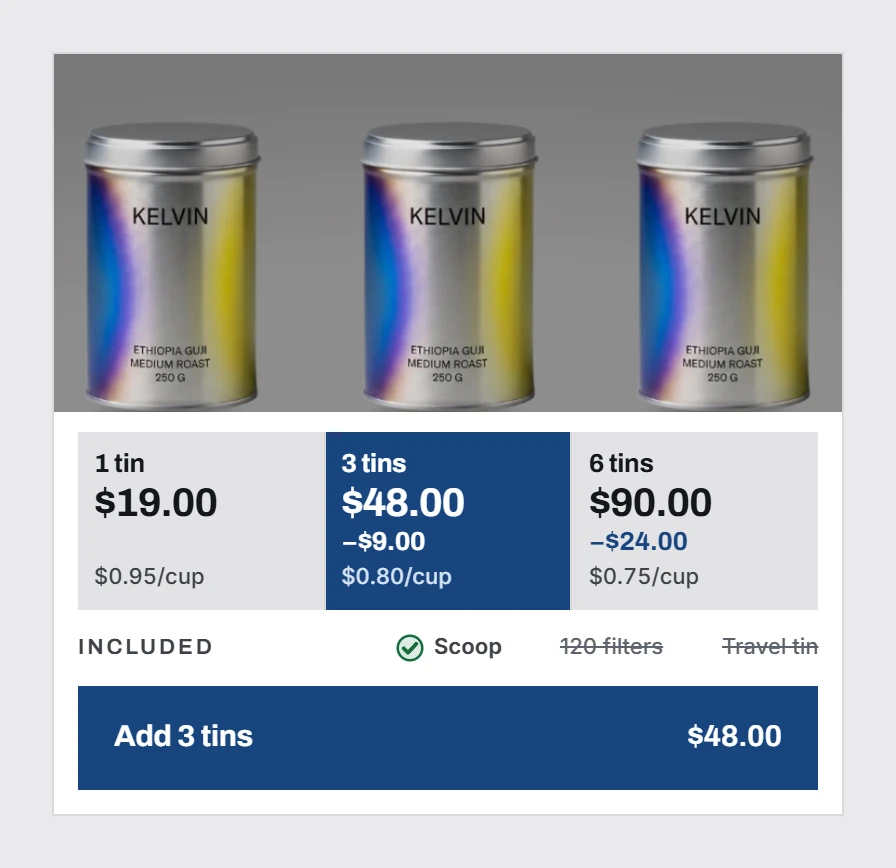
A quantity break is a price per unit that falls as the quantity rises: one tin at $19, three at $48, six at $90. A bundle is a fixed set sold as one line: the tin, the scoop and the cup for $54. Both raise the basket on the same order; the quantity break needs no second product, which is why it comes first for a single-product store.
What the app does, and what replaces it
| The app provides | Without an app | Who does it |
|---|---|---|
| A tier widget on the product page | A section file with a {% schema %} and a preset | Your AI, in the theme |
| The price arithmetic (unit price, saving) | Liquid in the section, from the variant price and a units-per-pack metafield | Your AI |
| The cart charging the tier price | A native automatic discount: Buy X get Y, or amount off with a quantity requirement | You, in the admin |
| The tier preselected and the total on the button | JavaScript in the section, twenty lines | Your AI |
| The monthly fee | Nothing | — |
The row that matters is the third. A section can show 3 for $48 all day; only a discount makes the cart total $48. Shopify's native discount types are amount off, Buy X get Y and free shipping, and the automatic ones apply to a cart that meets their requirements with no code entered. Create the discount first, then write the section to describe it, so the page never promises a price the cart will not charge.
The steps
- Decide the tiers and the arithmetic. The middle tier is the one you want; price it so the unit price visibly drops. The rule set, including why the unit price is the number the buyer compares, is in quantity breaks that raise average order value.
- Create the automatic discount in the admin. Discounts, create, automatic. Use Buy X get Y or an amount-off discount with the quantity as the requirement, one per tier. Check it in the cart with a test product before writing a line of theme code.
- Add a units-per-pack metafield on the product or variant, because Shopify's data model does not know how many cups are in a tin. The unit price is
variant.price / units_per_pack— a tin of 12 cups at $19 is $1.58 a cup, three tins at $48 is $1.33 — and it is the line the buyer reads. - Write the section.
sections/quantity-tiers.liquid: three cards from the variants or a tier setting, the unit price under each, the saving in currency, the middle card preselected, apresetsentry so it appears in the theme editor's Add section list. Your AI writes it; if it is connected to the uxgen MCP it requests the block rather than drafting it, and on an existing page it adds the section without moving anything else (/docs#improve). - Place it under the buy box in
templates/product.json, before the description. A tier selector below the fold is decoration. - Wire the button. Selecting a tier sets the quantity on the add-to-cart form and rewrites the button label to the total: Add 3 · $48.00. The total on the button is the total the buyer pays.
- Preview at 390 px with
shopify theme dev. Three cards side by side at phone width become a stack; the stack must keep the middle card visibly marked. - Publish and audit. Paste the URL at /audit; the quantity tiers mechanic should now read present, with the fragment that triggered it.
The mistakes the section must not make
- A percentage instead of a unit price. Save 15% is a calculation the buyer has to run. $1.33 per cup is a number they compare.
- A compare-at price nobody paid. The saving is against your own single-unit price, which is real. Striking through an invented higher price is a misleading practice in the EU.
- A builder with twelve options where a bundle that points at one choice would do. The audit names the first mechanic the bundle that points at one choice for a reason.
- Tiers on the page with no discount in the admin. The cart charges full price, the buyer notices at checkout, and the page has taught them not to trust it.
Bundle, as a fixed set
For a set — tin, scoop, cup — the section changes shape and the discount does not. Show the set as one card with its items ticked and its price, beside the single tin, and create a Buy X get Y discount that prices the set. The full component is in a bundle builder component. On a single-product store, skip it: the quantity break does the same job with no second SKU.
FAQ
How do I add quantity breaks to Shopify without an app?
Create a native automatic discount in the admin for each tier (Buy X get Y, or amount off with a quantity requirement), then add a section file to your theme that shows the tiers with the unit price under each and the middle tier preselected, placed under the buy box in templates/product.json. Selecting a tier sets the quantity on the add-to-cart form and writes the total on the button.
Can Shopify do bundles natively without an app?
The discount side, yes: Buy X get Y and amount-off discounts are native and apply automatically to a cart that meets their requirements. The display side — the tier cards, the unit price, the preselected tier — is theme code, a section your AI writes into sections/ with a preset so it appears in the theme editor.
Why does my quantity break section not change the cart price?
Because a section only displays. The cart charges what the discount rules say, and if no automatic discount exists for the quantity, the cart charges full price. Create the discount in the admin first, test it with a real product in the cart, then write the section to describe it.
Should I show the saving as a percentage or an amount?
An amount, in currency, plus the unit price. A percentage is a second arithmetic step at the moment you want one decision; the unit price — $1.33 per cup against $1.58 — is the comparison the buyer actually makes.